
By MoMo
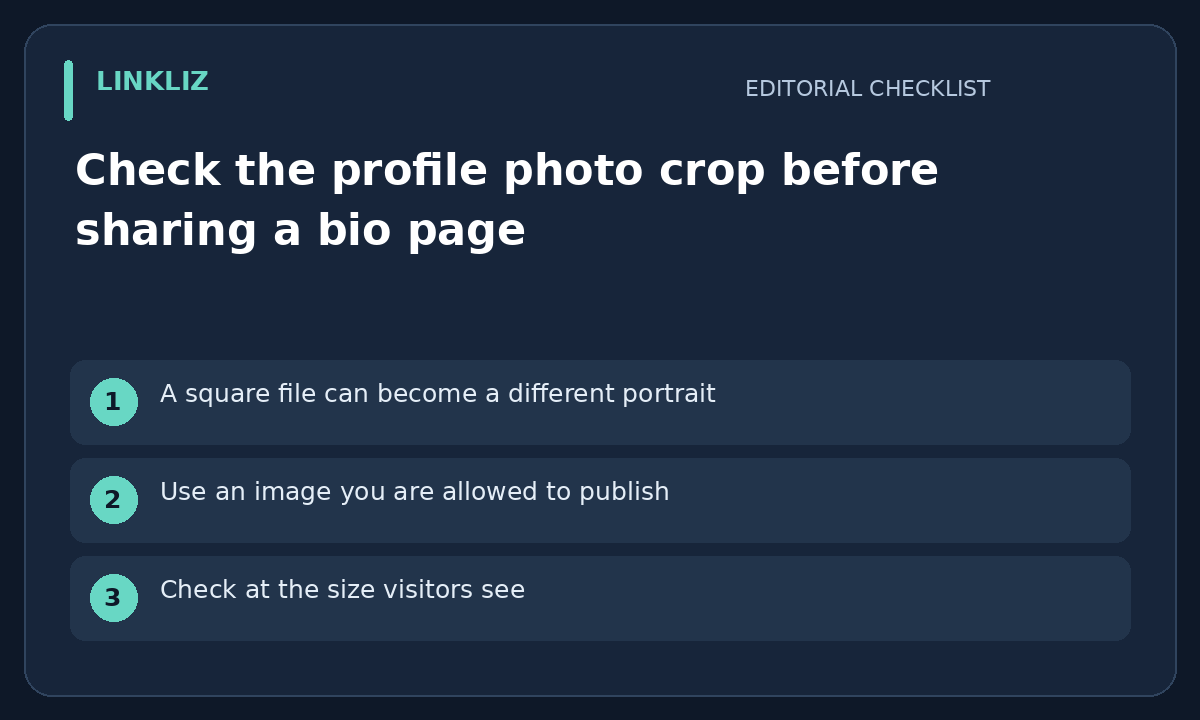
A square file can become a different portrait
A profile image may be shown as a circle or a small thumbnail on a bio page. Do not approve only the full-size original. Check the actual published crop and decide whether the intended face, logo or subject remains identifiable. This is a visual review method, not a promise of automatic cropping in Linkliz.
Use an image you are allowed to publish
Confirm permission for the image and the intended public audience before upload. Keep unnecessary background details out of a portrait, especially names, documents or another person who did not agree to appear. A public page should not become the first place a private family or work photograph is exposed.
Check at the size visitors see
Open the page on a phone and a desktop, without relying on the editor zoom. Look for a cut-off face, a clipped logo or text too small to read. If the subject is unclear, prepare a simpler permitted source image and review the new crop. Do not infer good quality from the uploaded pixel dimensions alone.
Keep identity clear outside the image
Use the page name and nearby text to identify the person or business. Do not place the only contact instruction inside a tiny avatar. If the page provides an alternative-text field, write a useful description appropriate to the image role rather than filling it with promotional keywords. Verify the actual page result rather than assuming the field is available.
Review the shared preview separately
A page avatar and a social link preview may use different images. Check the preview actually received by an approved test recipient before describing it as fixed. Keep the original file, approved crop and review date together. This checklist does not certify accessibility or guarantee every platform refreshes its cached preview immediately.
Your next step
Preview the profile photo at the small sizes visitors see and check that the crop keeps the intended subject clear.
Related guide: Make portfolio downloads usable from your bio page