
By MoMo
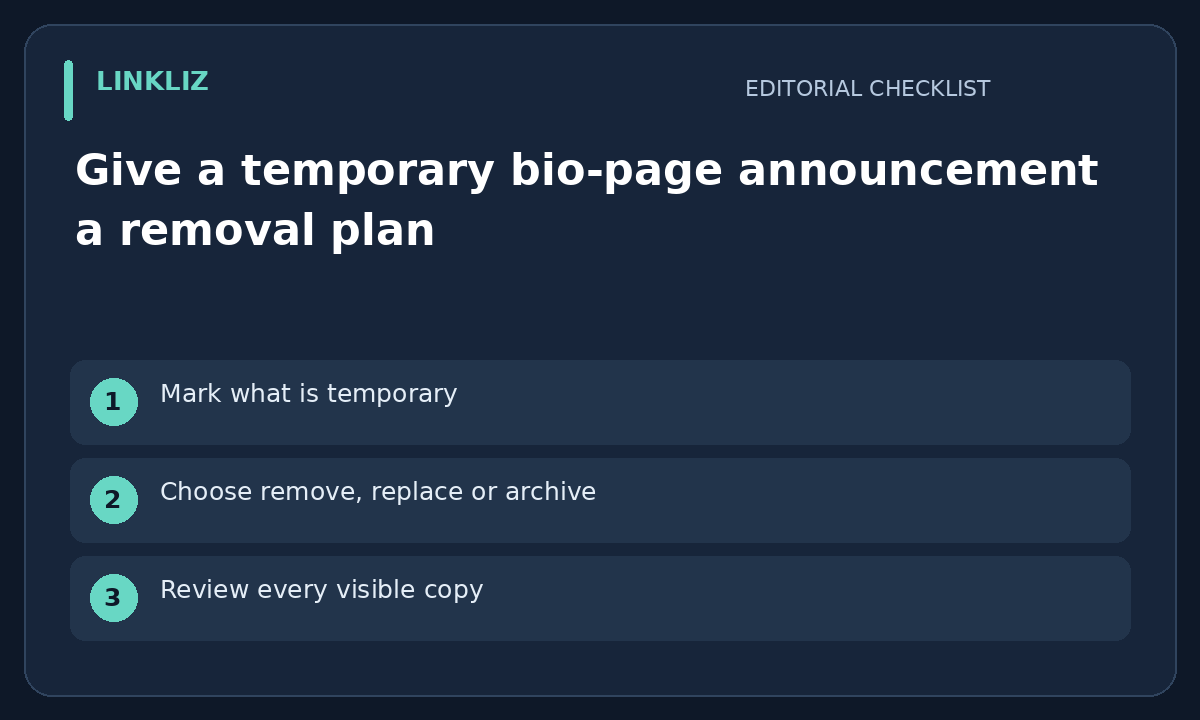
Mark what is temporary
An event banner, a launch notice and a permanent contact link have different lifetimes. Label the temporary item in your working record and write the date or condition that ends its usefulness. Do not rely on remembering why it was placed at the top of the bio page.
Choose remove, replace or archive
Decide what the visitor should see afterward. A finished event may need a recording link, an archive page or no announcement at all. Check permission and availability before promising a replacement. Removing a banner should not accidentally remove the only working contact route.
Review every visible copy
A temporary message may appear in the page title, a button, an image and a linked file. List the actual places it appears rather than changing only the first button. Open the page in each language you maintain and check whether the destination repeats the old date or offer.
Assign the later action explicitly
Write the responsible person and the next review condition. If a reminder is used, it should identify the page and the specific announcement, not just say “update bio.” Do not assume the page builder has automatic expiry or scheduled removal unless the current product and plan support it.
Check the public page after the change
When the approved change is made, open the public page and review the new first screen and remaining links. Keep a short completion note with the date and observed result. This guide describes a manual maintenance plan; it does not claim Linkliz automatically removes announcements or changes linked third-party pages.
Your next step
Choose an owner and removal date for the temporary announcement, then review every public copy.
Related guide: Give event links on your bio page an expiry owner